Pattern 4: Model Context Protocol (MCP)
Learn how to build an MCP server and connect it to an AI agent
Learning Objectives
By the end of this tutorial, you will be able to:
- Build an MCP server that exposes tools
- Connect an AI agent to an MCP server
- Discover and invoke MCP tools automatically
Prerequisites
Before starting this tutorial, ensure you have:
- .NET 10.0 SDK installed
- An LLM provider configured (see Setting Up the Agent Environment)
- Completed Pattern 2: Tool Use (recommended)
What You’ll Build
A math assistant that connects to an MCP Calculator server:
You: What is the factorial of 5 plus the square root of 144?
Agent: Let me calculate that step by step.
       factorial(5) = 120
       square_root(144) = 12
       120 + 12 = 132
       The answer is 132.
What is MCP?
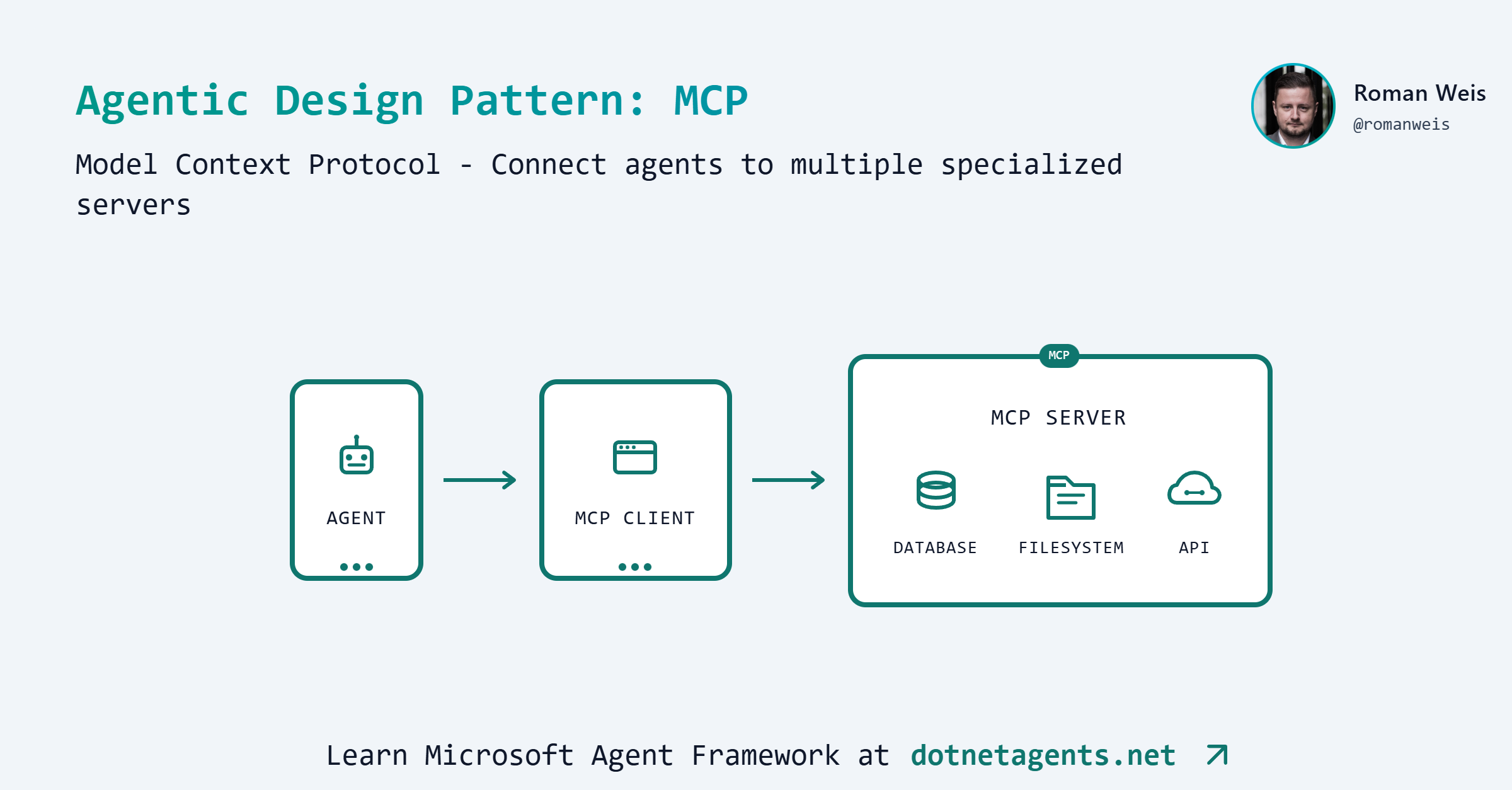
The Model Context Protocol (MCP) is an open standard for connecting AI applications to external tools. Instead of writing custom integrations, you implement the MCP protocol once and any MCP client can use your tools.
Why MCP?
| Approach | Pros | Cons |
|---|---|---|
| Custom Integration | Full control | Must rewrite for each client |
| MCP | Universal compatibility | Follows protocol rules |
MCP uses JSON-RPC 2.0 for communication. The .NET SDK handles serialization and you just write normal C# methods.
Part 1: Building the MCP Server
The MCP server exposes calculator tools that any MCP client can discover and call.
Project Structure
McpCalculatorServer/
├── Program.cs           # Server entry point (12 lines)
└── Tools/
    └── CalculatorTools.cs  # Tool definitions
Step 1: Create the Project
dotnet new console -n McpCalculatorServer
cd McpCalculatorServer
dotnet add package ModelContextProtocol --version 0.6.0-preview.1
dotnet add package Microsoft.Extensions.Hosting --version 9.0.0
Step 2: Define Tools
Create Tools/CalculatorTools.cs:
using System.ComponentModel;
using ModelContextProtocol.Server;

namespace McpCalculatorServer.Tools;

[McpServerToolType]
public static class CalculatorTools
{
    [McpServerTool, Description("Add two numbers together")]
    public static double Add(
        [Description("First number")] double a,
        [Description("Second number")] double b)
        => a + b;

    [McpServerTool, Description("Subtract second number from first")]
    public static double Subtract(
        [Description("First number")] double a,
        [Description("Second number")] double b)
        => a - b;

    [McpServerTool, Description("Multiply two numbers")]
    public static double Multiply(
        [Description("First number")] double a,
        [Description("Second number")] double b)
        => a * b;

    [McpServerTool, Description("Divide first number by second")]
    public static double Divide(
        [Description("Dividend")] double a,
        [Description("Divisor (must not be zero)")] double b)
    {
        if (b == 0)
            throw new ArgumentException("Cannot divide by zero", nameof(b));
        return a / b;
    }

    [McpServerTool, Description("Calculate the square root of a number")]
    public static double SquareRoot(
        [Description("Number (must be non-negative)")] double n)
    {
        if (n < 0)
            throw new ArgumentException("Cannot take square root of negative number", nameof(n));
        return Math.Sqrt(n);
    }

    [McpServerTool, Description("Calculate the factorial of a non-negative integer")]
    public static long Factorial(
        [Description("Non-negative integer (max 20)")] int n)
    {
        if (n < 0)
            throw new ArgumentException("Factorial undefined for negative numbers", nameof(n));
        if (n > 20)
            throw new ArgumentException("Factorial too large (max n=20)", nameof(n));

        long result = 1;
        for (int i = 2; i <= n; i++)
            result *= i;
        return result;
    }
}
Key attributes:
| Attribute | Purpose |
|---|---|
[McpServerToolType] | Marks the class as containing MCP tools |
[McpServerTool] | Marks a method as an MCP tool |
[Description] | Describes the tool/parameter for the LLM |
Step 3: Configure the Server
Replace Program.cs:
using Microsoft.Extensions.DependencyInjection;
using Microsoft.Extensions.Hosting;
using Microsoft.Extensions.Logging;

var builder = Host.CreateApplicationBuilder(args);

// Log to stderr so stdout remains clean for MCP JSON-RPC messages
builder.Logging.AddConsole(opts => opts.LogToStandardErrorThreshold = LogLevel.Trace);

builder.Services.AddMcpServer().WithStdioServerTransport().WithToolsFromAssembly();

await builder.Build().RunAsync();
That’s the entire server in only a couple lines of code.
What each method does:
| Method | Purpose |
|---|---|
AddMcpServer() | Registers MCP server services |
WithStdioServerTransport() | Uses stdin/stdout for communication |
WithToolsFromAssembly() | Auto-discovers [McpServerToolType] classes |
Step 4: Build the Server
dotnet build
The server is now ready. When run, it waits for JSON-RPC messages on stdin.
Part 2: Using the MCP Server in an Agent
Now let’s build an agent that connects to our MCP server.
How Stdio Transport Works
The client launches the server as a subprocess:
flowchart TB
  subgraph Client["Client Process"]
      MC[MCP Client]
  end
  subgraph Server["Server Process (subprocess)"]
      Tools[Calculator Tools]
  end
  MC -->|"spawns"| Server
  MC -->|"stdin: JSON-RPC requests"| Tools
  Tools -->|"stdout: JSON-RPC responses"| MC
Step 1: Create the Client Project
dotnet new console -n McpPattern
cd McpPattern
dotnet add package ModelContextProtocol --version 0.6.0-preview.1
dotnet add package Microsoft.Extensions.AI
Step 2: Create the Transport
using ModelContextProtocol.Client;

// Path to the MCP server project
var mcpServerPath = "/path/to/McpCalculatorServer";

// Create Stdio transport - launches server as subprocess
var transport = new StdioClientTransport(
    new StdioClientTransportOptions
    {
        Name = "CalculatorServer",
        Command = "dotnet",
        Arguments = ["run", "--project", mcpServerPath, "--no-build"],
    }
);
Step 3: Connect and Discover Tools
// Connect to the MCP server
var mcpClient = await McpClient.CreateAsync(transport);

await using (mcpClient)
{
    // Discover available tools
    var tools = await mcpClient.ListToolsAsync();

    Console.WriteLine($"Discovered {tools.Count} MCP tools:");
    foreach (var tool in tools)
    {
        Console.WriteLine($"  - {tool.Name}: {tool.Description}");
    }
}
Output:
Discovered 6 MCP tools:
  - Add: Add two numbers together
  - Subtract: Subtract second number from first
  - Multiply: Multiply two numbers
  - Divide: Divide first number by second
  - SquareRoot: Calculate the square root of a number
  - Factorial: Calculate the factorial of a non-negative integer
Step 4: Integrate with ChatClient
MCP tools work directly with ChatClientBuilder:
using Microsoft.Extensions.AI;

var mcpClient = await McpClient.CreateAsync(transport);

await using (mcpClient)
{
    var tools = await mcpClient.ListToolsAsync();

    // Create chat client with automatic tool invocation
    var baseClient = ChatClientFactory.Create(provider, model);
    var client = new ChatClientBuilder(baseClient)
        .UseFunctionInvocation()
        .Build();

    // Pass MCP tools to chat options
    var options = new ChatOptions { Tools = [.. tools] };

    // Now the agent can use the tools automatically
    var response = await client.GetResponseAsync(
        "What is 5 factorial plus the square root of 144?",
        options
    );
}
The agent automatically:
- Sees the available tools and their descriptions
- Decides when to call a tool based on the user’s question
- Invokes the tool via the MCP client
- Uses the result to form a response
Complete Client Example
Here’s the full client code from the pattern:
using DotNetAgents.Infrastructure;
using Microsoft.Extensions.AI;
using ModelContextProtocol.Client;

Console.WriteLine("=== MCP Calculator Demo ===");

// Determine path to MCP Calculator Server
var mcpServerPath = GetMcpServerPath();

// Create Stdio transport
var transport = new StdioClientTransport(
    new StdioClientTransportOptions
    {
        Name = "CalculatorServer",
        Command = "dotnet",
        Arguments = ["run", "--project", mcpServerPath, "--no-build"],
    }
);

Console.WriteLine("Starting MCP Calculator Server...");

var mcpClient = await McpClient.CreateAsync(transport);

await using (mcpClient)
{
    // Discover tools
    var tools = await mcpClient.ListToolsAsync();

    Console.WriteLine($"Discovered {tools.Count} MCP tools:");
    foreach (var tool in tools)
    {
        Console.WriteLine($"  - {tool.Name}: {tool.Description}");
    }

    // Create chat client with tools
    var baseClient = ChatClientFactory.Create(provider, model);
    var client = new ChatClientBuilder(baseClient)
        .UseFunctionInvocation()
        .Build();

    var options = new ChatOptions { Tools = [.. tools] };

    // Interactive conversation loop
    while (true)
    {
        Console.Write("You: ");
        var input = Console.ReadLine();
        if (string.IsNullOrEmpty(input)) break;

        var response = await client.GetResponseAsync(input, options);
        Console.WriteLine($"Agent: {response}");
    }
}

Console.WriteLine("Session ended.");
Running the Demo
cd patterns/04-model-context-protocol/src/McpPattern
dotnet run -- --provider azure --model gpt-4.1
Example session:
=== MCP Calculator Demo ===
MCP Server Path: /path/to/McpCalculatorServer
Starting MCP Calculator Server...
Discovered 11 MCP tools:
  - Add: Add two numbers together
  - Subtract: Subtract second number from first
  - Multiply: Multiply two numbers
  - Divide: Divide first number by second
  - Power: Raise a number to a power
  - SquareRoot: Calculate the square root of a number
  - Factorial: Calculate the factorial of a non-negative integer
  - AbsoluteValue: Calculate the absolute value of a number
  - NaturalLog: Calculate the natural logarithm (ln) of a number
  - Sine: Calculate the sine of an angle in radians
  - Cosine: Calculate the cosine of an angle in radians

You: What is the factorial of 5 plus the square root of 144?

Agent: I'll calculate that for you.

First, factorial of 5:
factorial(5) = 120

Then, square root of 144:
square_root(144) = 12

Adding them together:
add(120, 12) = 132

The answer is **132**.
Common Mistakes
1. Logging to stdout
The server uses stdout for JSON-RPC messages. Any other output breaks communication.
// Wrong - breaks MCP
Console.WriteLine("Debug info");

// Correct - use stderr
Console.Error.WriteLine("Debug info");
2. Missing Descriptions
Without descriptions, the LLM doesn’t know what the tool does:
// Wrong - LLM can't understand this
[McpServerTool]
public static double Calc(double a, double b) => a + b;

// Correct
[McpServerTool, Description("Add two numbers together")]
public static double Add(
    [Description("First number")] double a,
    [Description("Second number")] double b) => a + b;
3. Not Disposing the Client
The MCP client manages the server subprocess. Not disposing it leaves the process running:
// Wrong - leaks subprocess
var client = await McpClient.CreateAsync(transport);
var tools = await client.ListToolsAsync();
// Server keeps running forever!

// Correct
await using (var client = await McpClient.CreateAsync(transport))
{
    var tools = await client.ListToolsAsync();
}  // Server process terminated
Summary
In this tutorial you learned:
-
Build an MCP Server
- Use
[McpServerToolType]and[McpServerTool]attributes - Add
[Description]to help the LLM understand your tools - Configure with
AddMcpServer().WithStdioServerTransport().WithToolsFromAssembly()
- Use
-
Connect from an Agent
- Create
StdioClientTransportpointing to your server - Use
McpClient.CreateAsync()to connect - Call
ListToolsAsync()to discover tools - Pass tools to
ChatOptionsfor automatic invocation
- Create
Resources
Found this helpful?
Comments